
Please refer to the previous article, "How to submit your PAYE return". There, you will see how to create or get your PAYE invoice.
Congratulations! You have completed your monthly PAYE filing on CrossRiverPay 360 Gov.
You have added your employees, completed the necessary steps, and generated your PAYE invoice.
But wait a minute!
Have you completed the payment?
Filing your PAYE return and paying the amount due are two different steps. Completing your filing does not automatically mean that your payment has been made.
The good news? You don't have to leave your home or office to settle your tax obligations.
With CrossRiverPay 360 Gov, you can pay directly from the platform using the available payment options.
And yes, you can do it from the comfort of your home or office!
Ready? Let's break it down.
2. Choose Your Payment Route
CrossRiverPay 360 Gov gives you convenient ways to access tax payment services.
You can initiate your payment through the platform's menu system or use the chatbot to help you navigate the process.
Once you have accessed the appropriate payment option, follow the instructions provided to complete your transaction.
Here are the payment routes to know.
Option 1: Pay Through Your Company Profile (Via PAYE Invoice)
This is for you if you prefer navigating the platform yourself.
Sign in with your Corporate TIN to CrossRiverPay 360 Gov. If you have a challenge with How to sign in please visit the article "How to log in to your account"
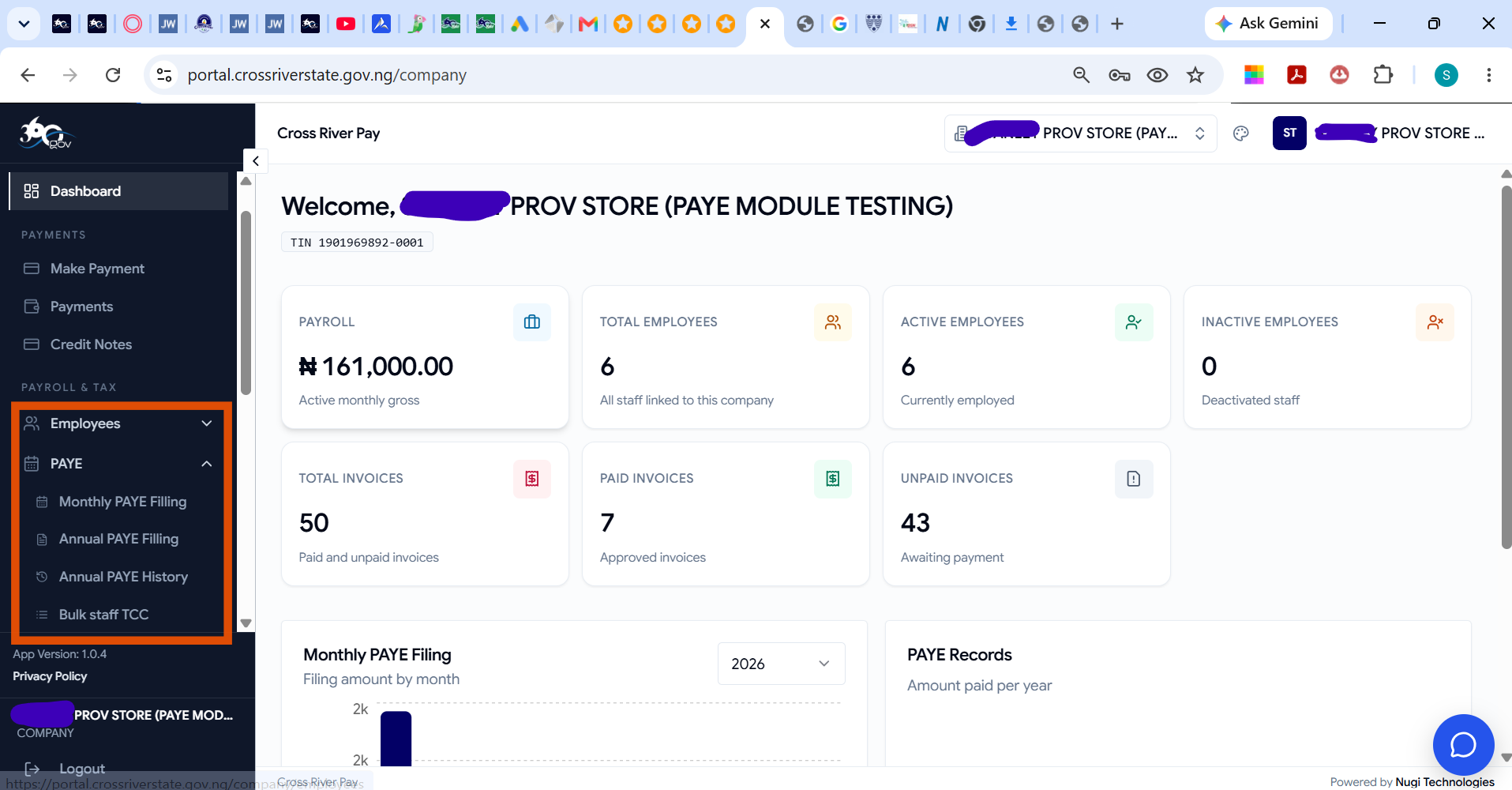
We are logged in now. Locate the PAYE section as indicated by the red box above. Navigate to and click the PAYE menu and then click on the "Monthly PAYE Filing" menu. When you do, you will see as displayed below
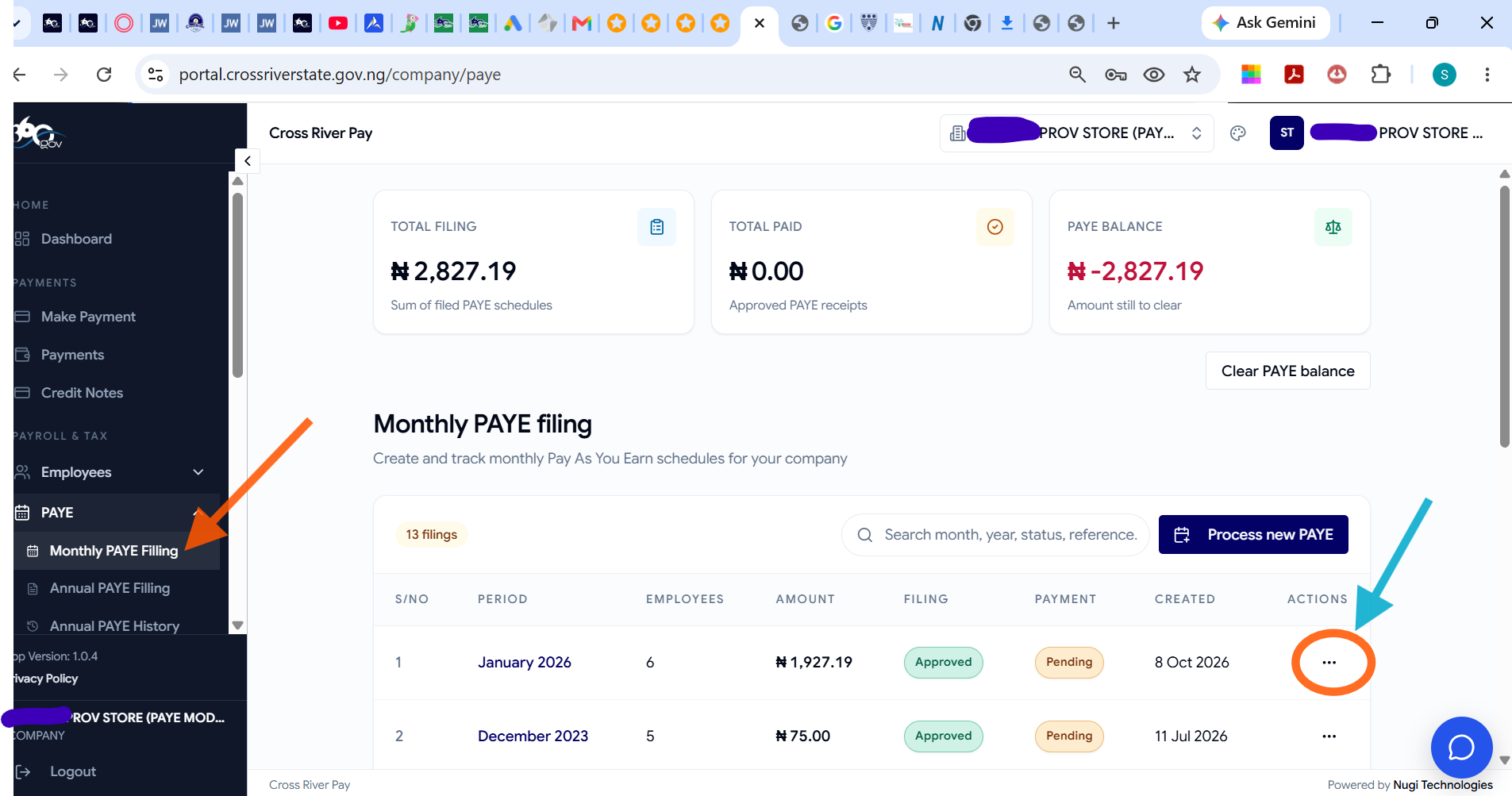
Click on "Monthly PAYE Filing". You will see all the monthly filings listed, as you can see January 2026, December 2023, etc.
Scroll to the particular monthly PAYE filing you wish to pay for.
Take your mouse pointer to the 3 horizontal dots as indicated by the red circle above and click on them. You will see a view icon.
Click on the "View" icon. It will open the PAYE invoice for that month as was previously filled.
You will see as displayed below
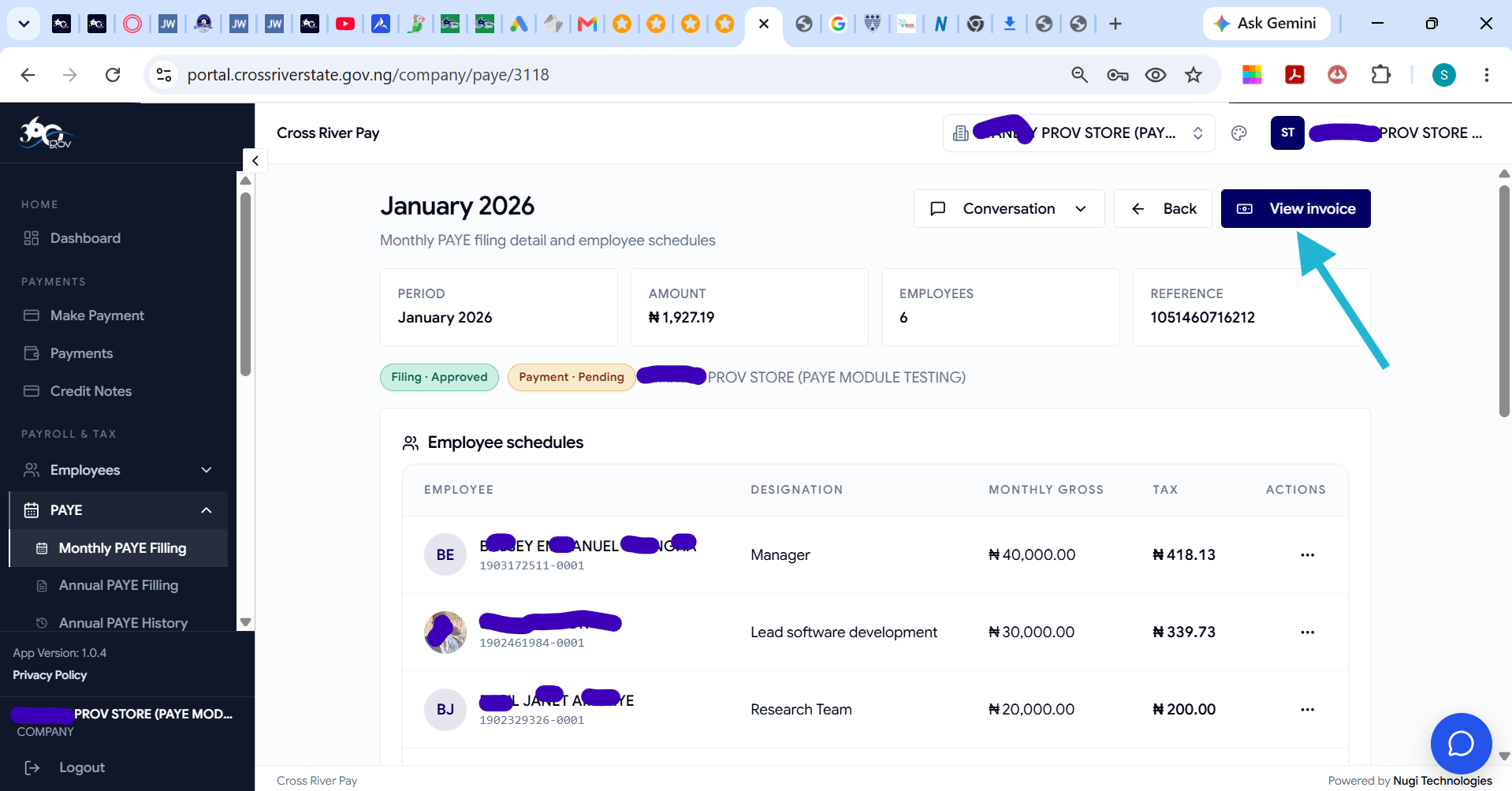
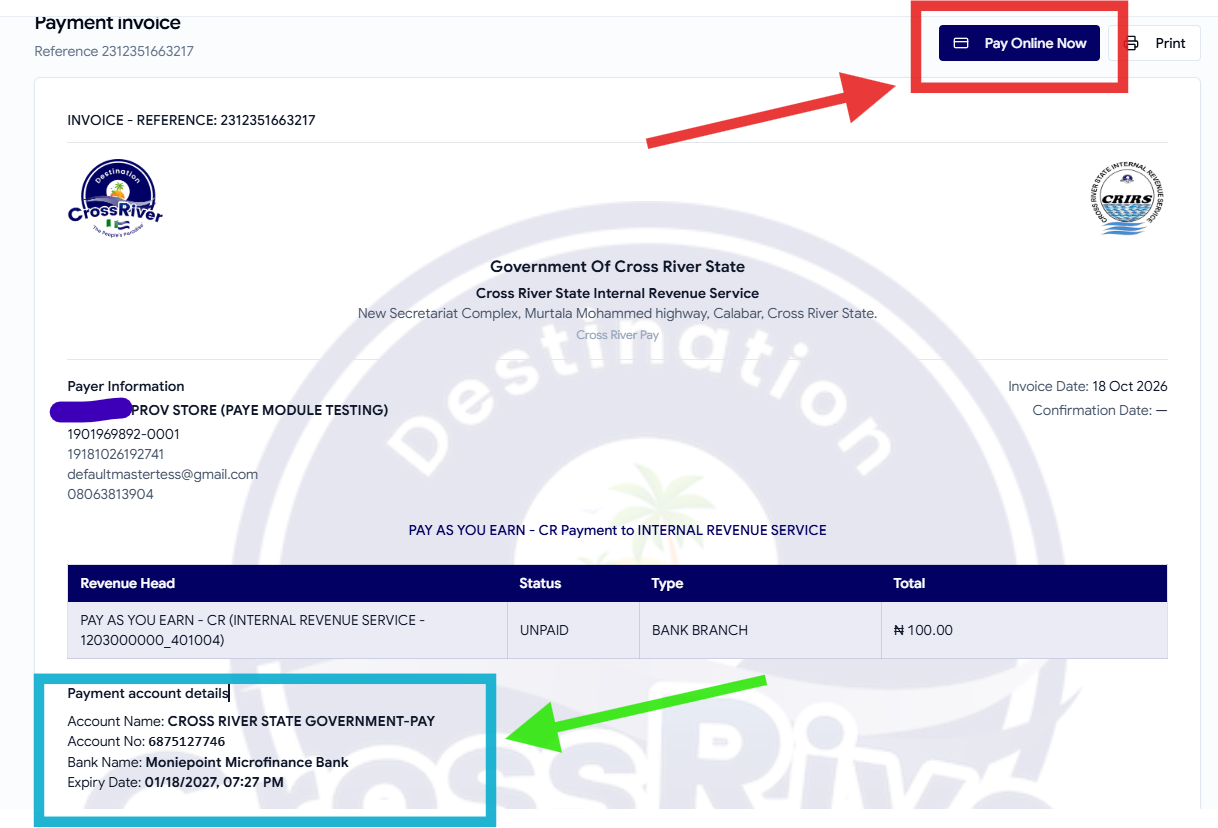
Click on the "View Invoice" button as shown in the green arrow above. You will see the invoice open up, and then you will see "Pay online Now" as illustrated by the red arrow shown below
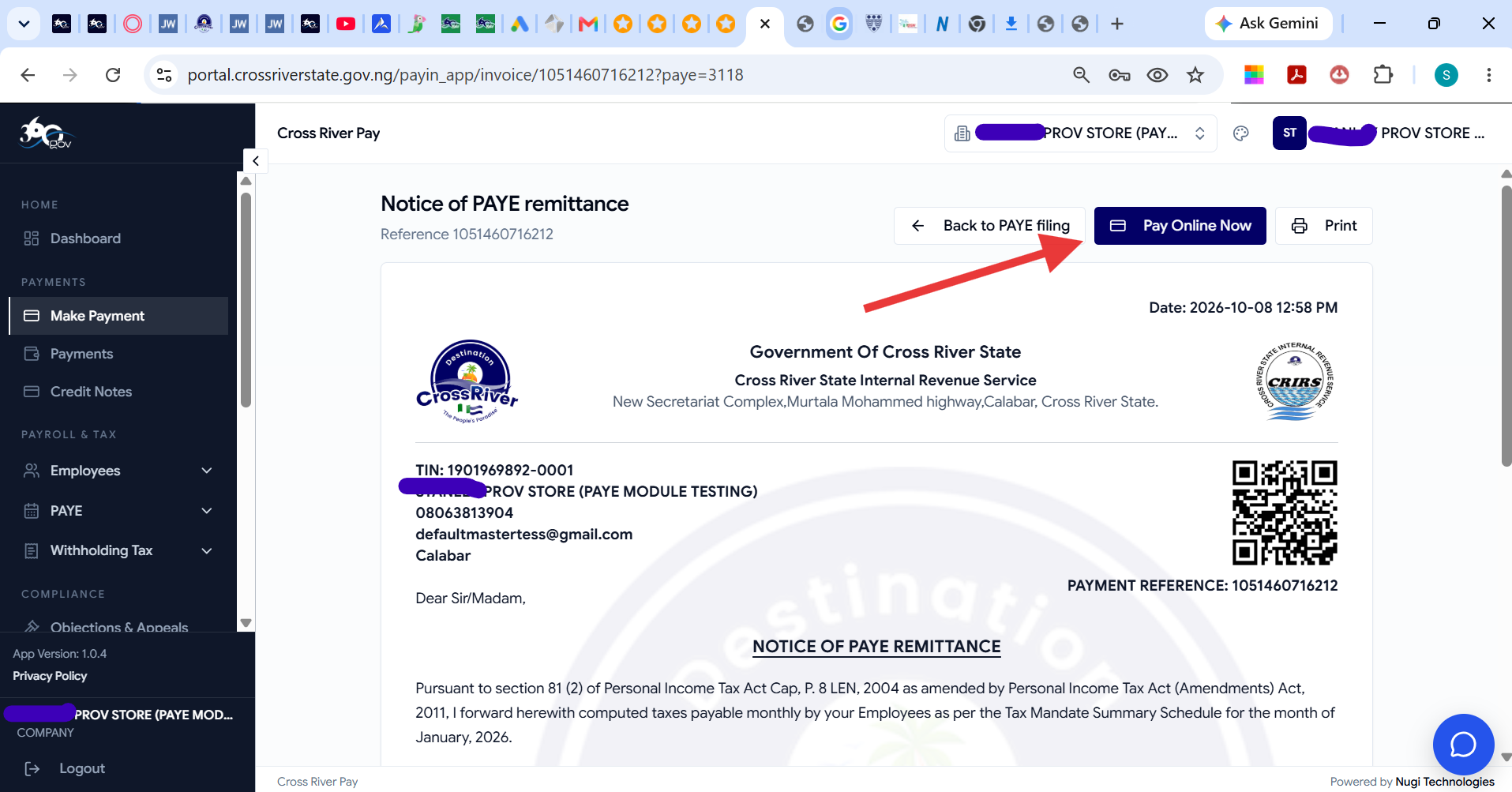
This opens up the payment gateway where you get to choose whether to make a transfer to a government account from your bank. Or use your ATM details to make payment. as indicated in the red box below.
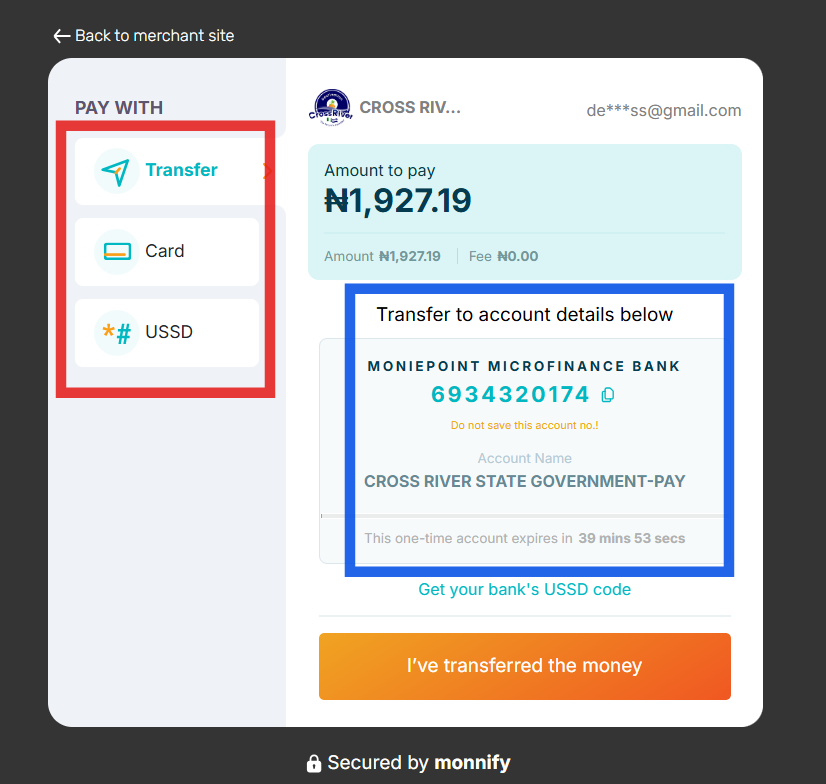
Point to Note: Very Important!! The account you are seeing as illustrated in the blue box, is always changing. Every transaction brings forth a different account. So you should never reuse a particular account. Please stick to this rule to avoid payment complications and downtime of conflict and resolution initiatives.
Once the transfer is made successfully, the page turns into a receipt. Where you can then print for your records
Simple, right?
Option 2: Let the AI Chatbot Guide You (Log out to use the chatbot)
Would you rather have some assistance finding your way around?
The CrossRiverPay 360 Gov AI chatbot can help you navigate the platform and locate the relevant payment information.
Open the AI chatbot on the platform as seen in the picture below; follow the green arrow.
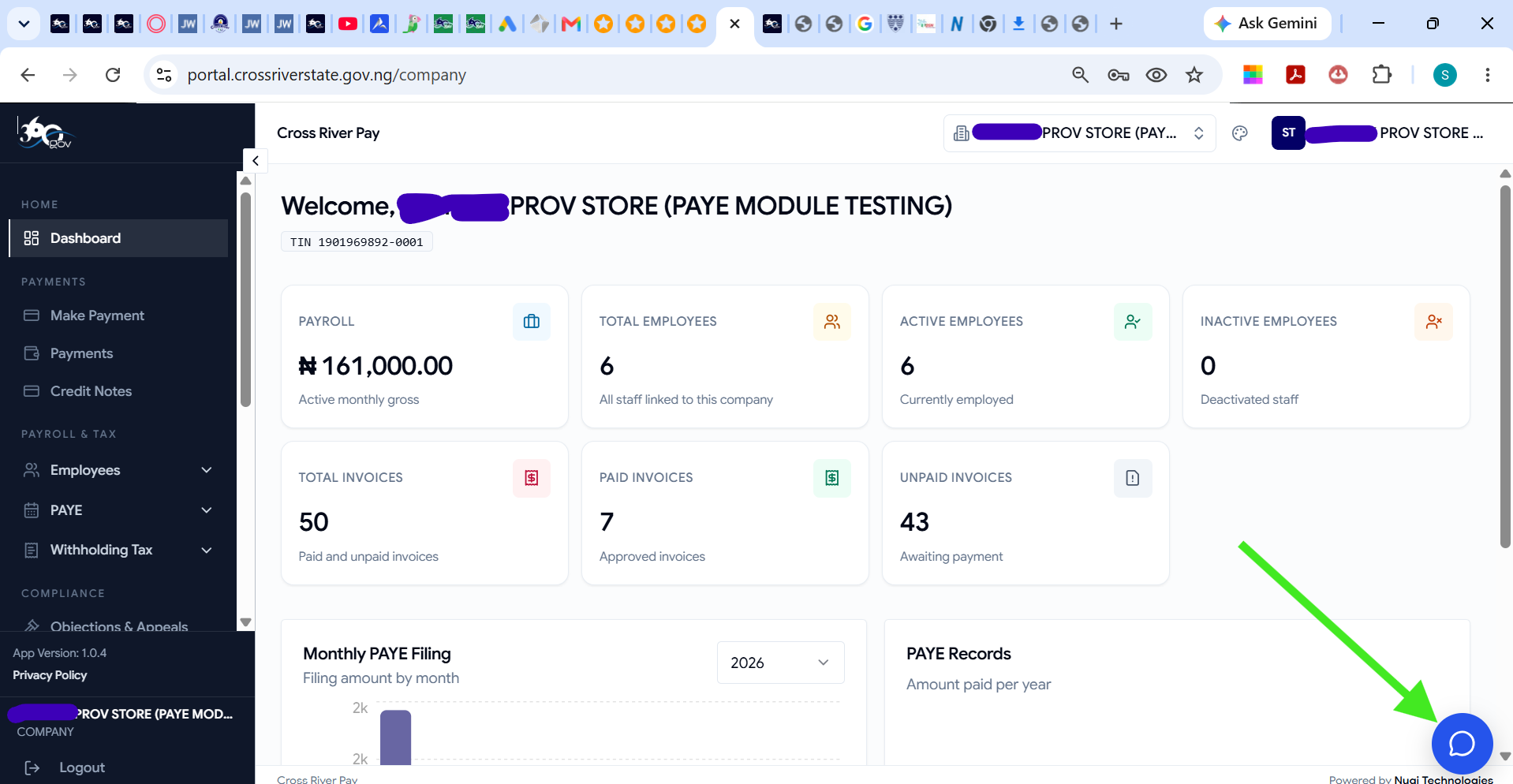
If this is the first time you are using the bot, it will ask you for some details like your name, phone number, email and where you are chatting from. fill all these and proceed
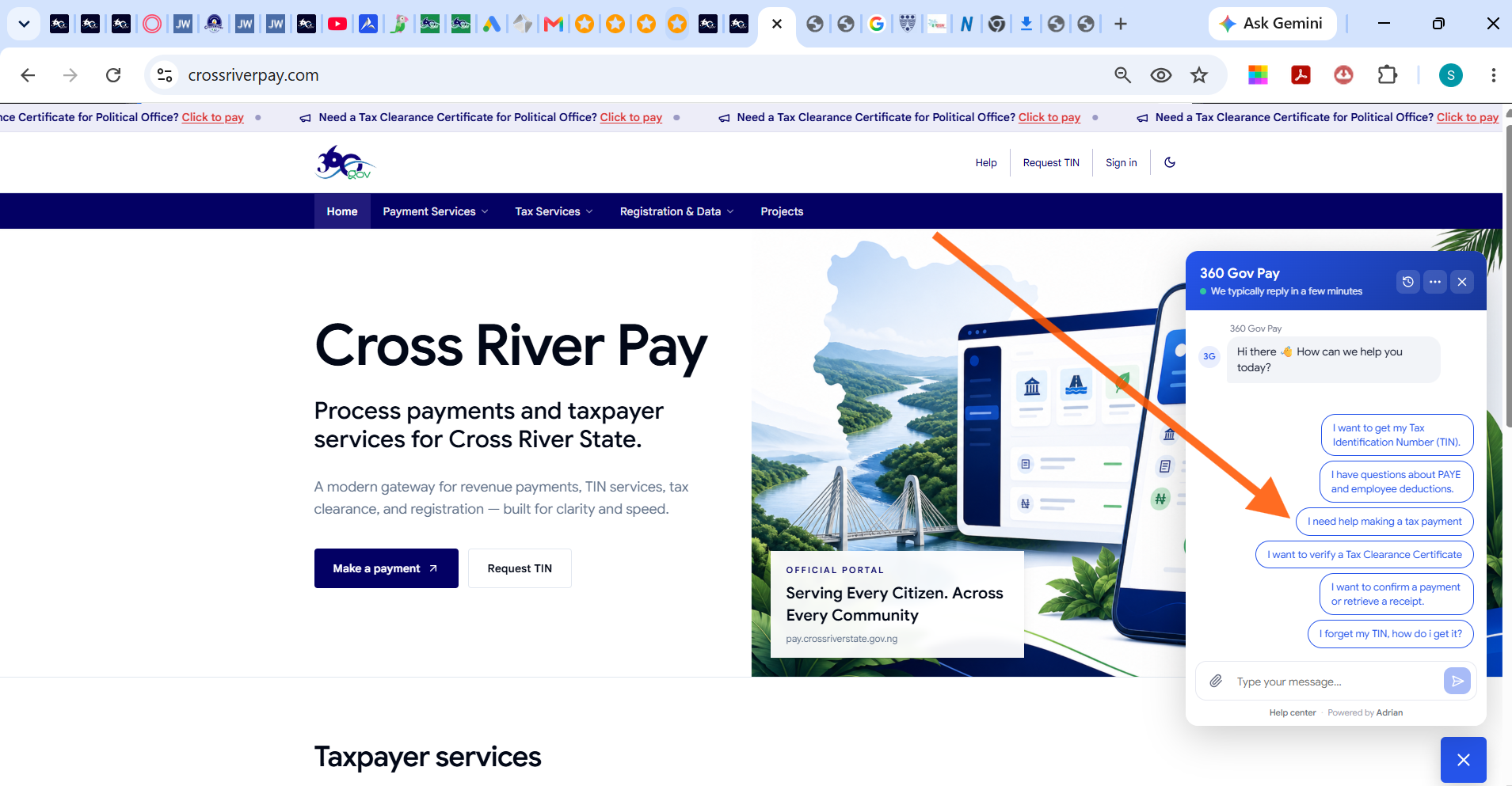
Ask for help with making a tax payment.
Follow the guidance provided to locate the appropriate payment option as indicated in the second image below (Red arrow)
The bot pulls up a short form for you to fill as shown in the blue arrow below: it asks for the MDA that drives the particular revenue head you are paying for. so if you are paying for PAYE in this case, you will choose INTERNAL REVENUE SERVICE (NOT) BOARD OF INTERNAL REVENUE SERVICE.
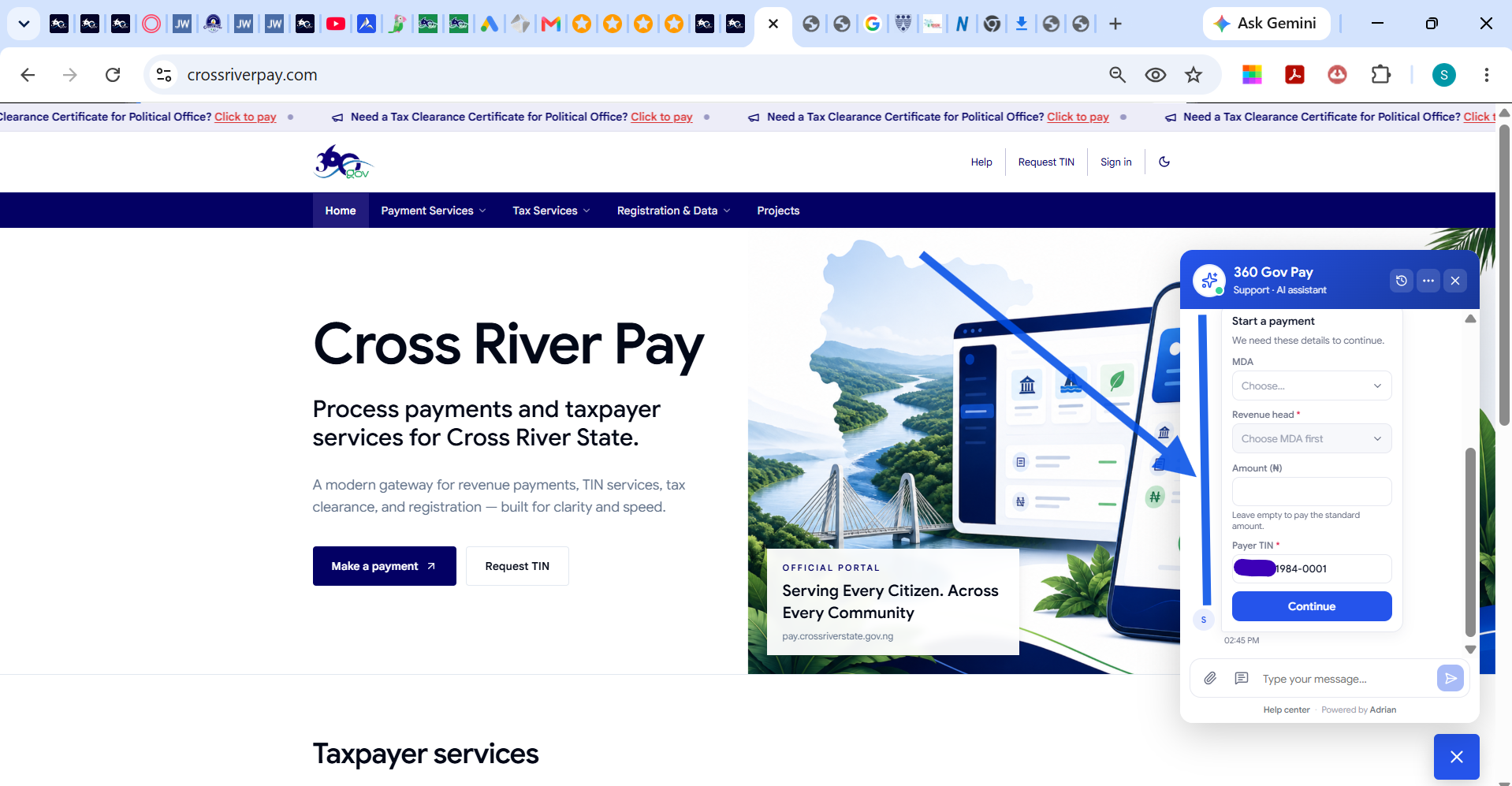
Under the revenue head, enter "PAY AS YOU EARN-CR"; you will see it pop up, click on it.
Click on "Continue"
The bot brings up an account number to make a transfer as shown below
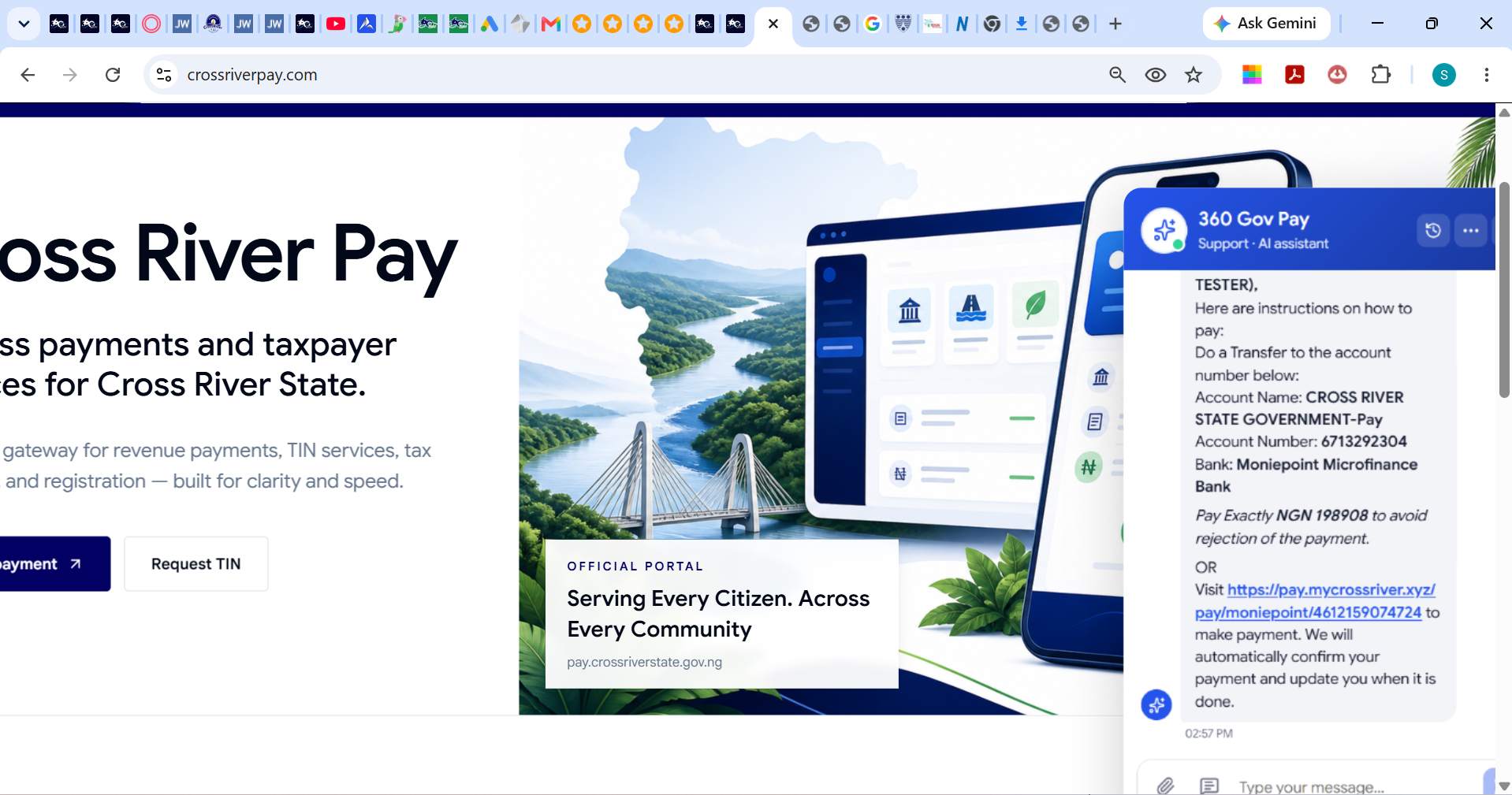
Follow the available payment instructions to complete the transaction.
Once the transfer is made from your bank to the account displayed. The successful message pops up, and then the receipt is shared. Click on it to view and print it for keeps.
Remember, the AI chatbot is there to guide you. Always verify the invoice details and ensure that you complete the actual payment process.
Option 3: What About If You Use Remita to Make Payment?
Do not panic. Yes! If your organisation uses Remita, there is no cause for alarm. The question we should be asking is, is it possible to ask the company's bank to debit the company's bank account and credit the government bank account? 'If the answer is YES... then it's possible for companies that pay with Remita to implement that route.
All you need to do is choose the bank option when generating the PAYE invoice.
Implementing the Bank Branch Route (Accommodating Taxpayers that Pay via Remita)
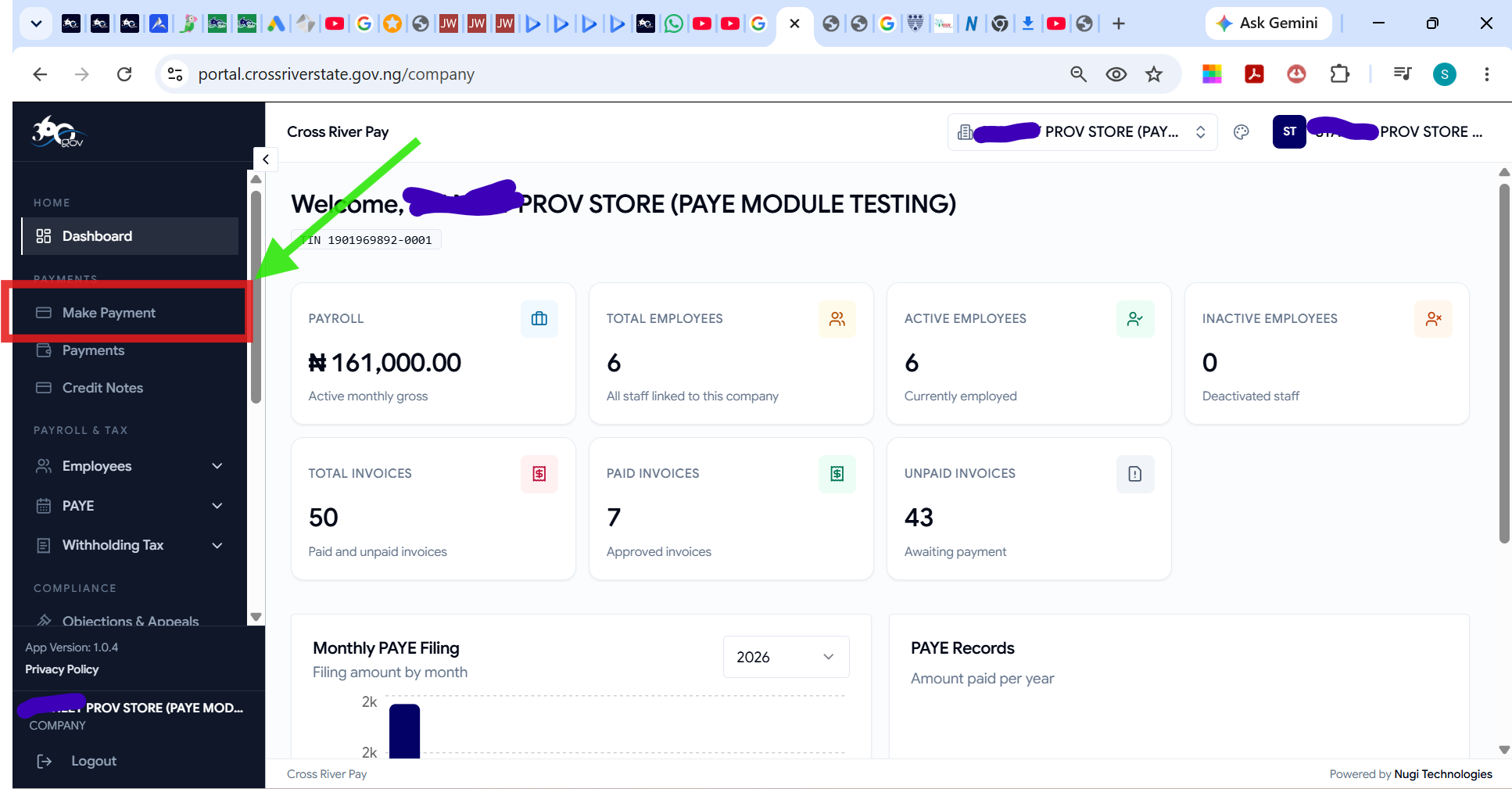
1. Login to company profile on crossriverpay 360 gov
Click on the "Make Payment Menu" as illustrated by the green arrow below
Follow through as directed in option 2 above. and
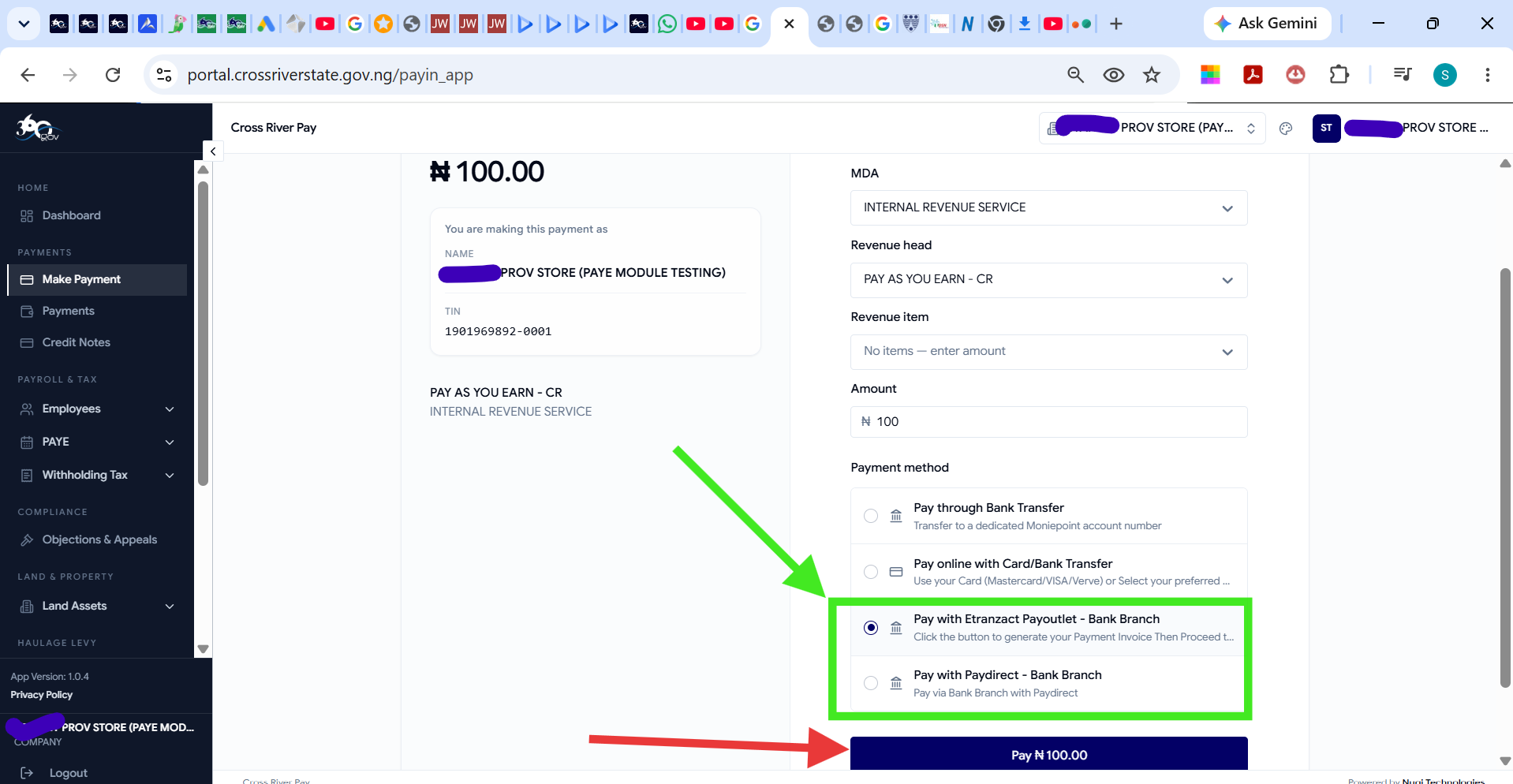
Choose any of the 2 options below:
Pay with Etranzact Payoutlet - Bank Branch
Click the button to generate your payment invoice, then proceed to your bank to make the payment.
Pay with Paydirect - Bank Branch Pay via Bank Branch with Paydirect
see screen shot below as indicated by the Green arrow. and then click "Pay" As indicated by Red arrow.
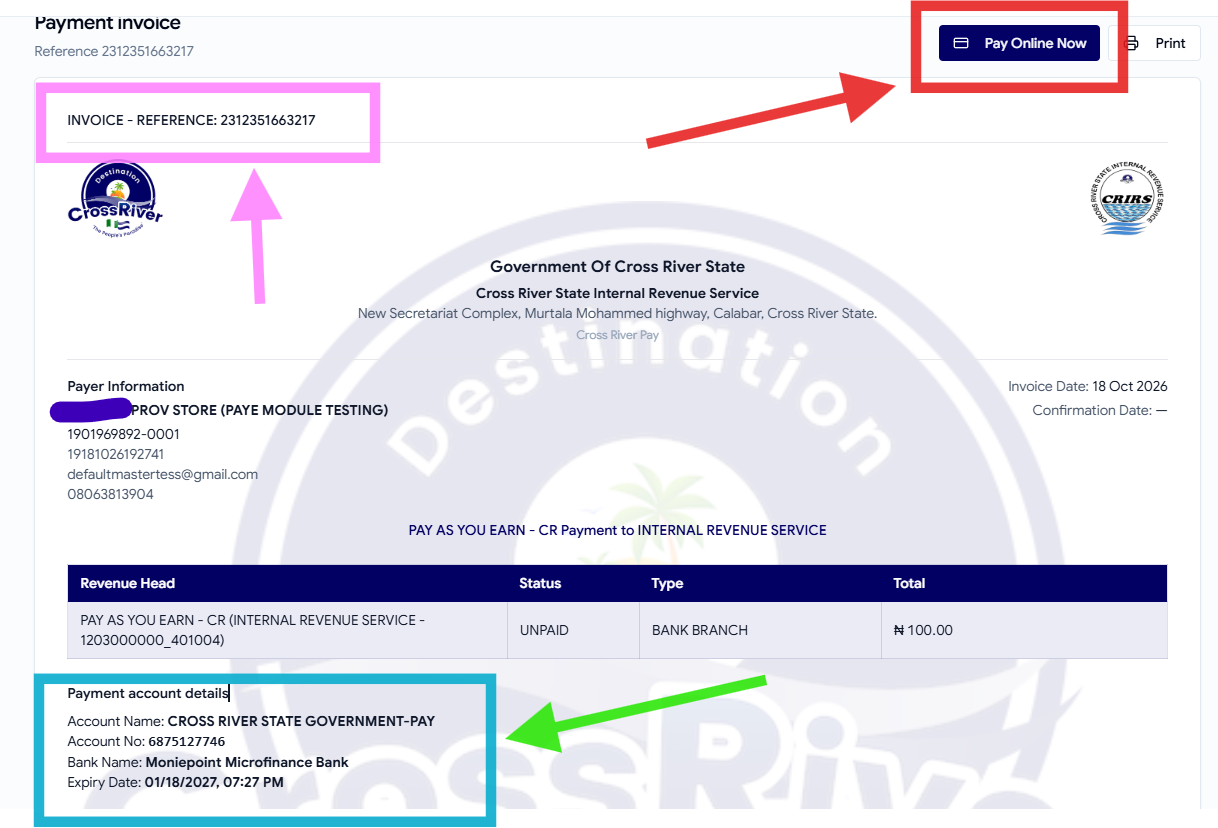
Just print out the PAYE invoice, which has the government bank account you need to credit. As is shown in the green arrow in the screenshot below:
As you can see, you can as well pay immediately online by clicking the "Pay online Now" button indicated by the red arrow below.
However, this is recommended to those using Remita to make payment. This invoice has a government account that is generated. It's a one-time account generated specifically for this transaction. and cannot be used for another transaction as indicated by the green box.
This invoice should be printed and sent to the bank along with a payment instruction to the bank to debit the company's bank account and credit the account as indicated in the green box. Once the transfer is made, refreshing this page turns the page to the receipt.
How can I retrieve My payment receipt?
Simple!!...
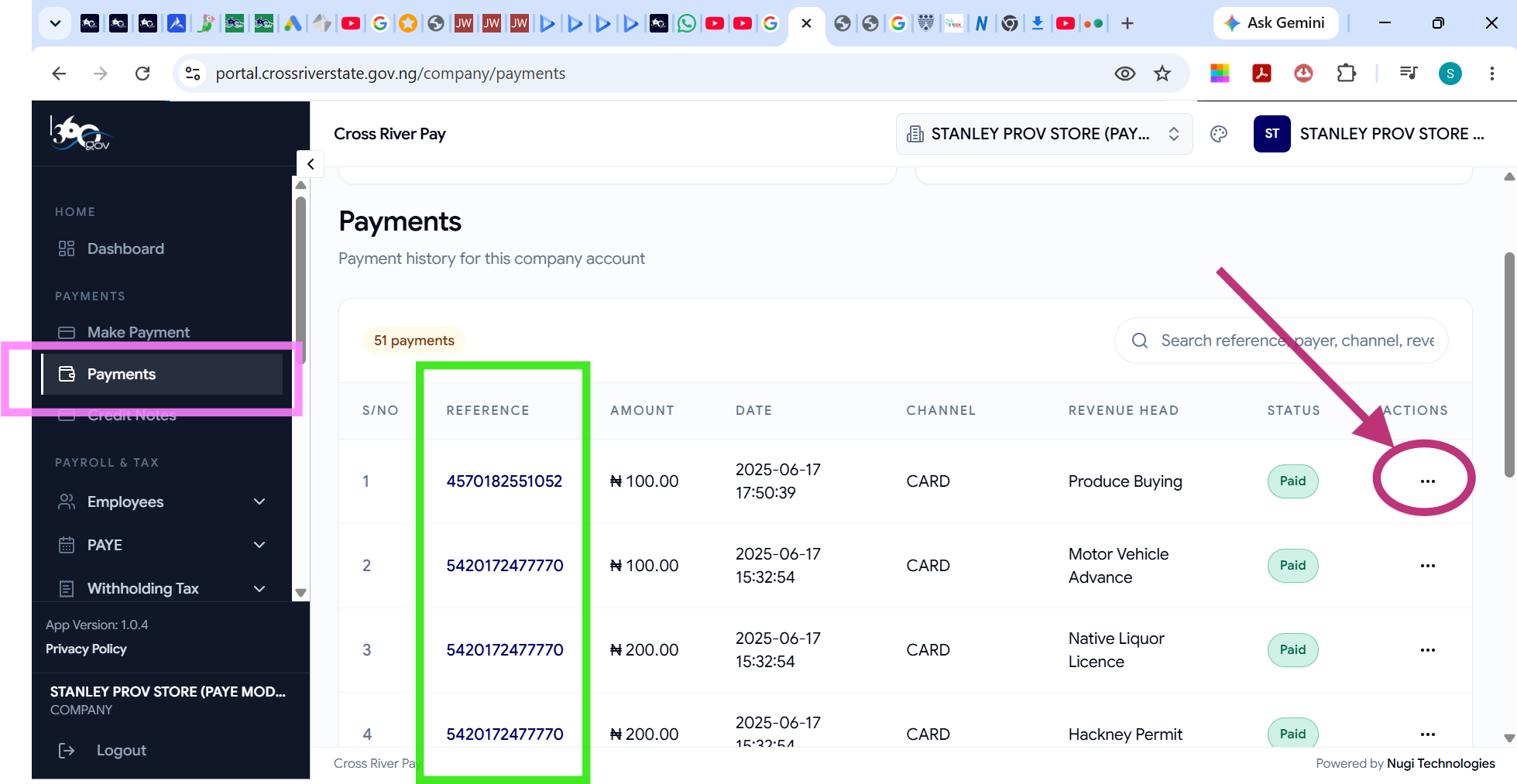
Look at the picture above; you will see a pink box and a pink arrow. That number you see inside is the invoice payment reference.
From your CrossriverPay 360 Gov login
Click on "Payments" as indicated by the pink box. Locate the paye invoice number in that column (green box) below.
When the payment reference is sighted, take the mouse pointer to the corresponding three horizontal dots as indicated by the red circle (red arrow)
Click on it and then click on "View Receipt"
And that is it. You can now view your receipt
You will have to print it for the keep.
However, let's be honest: if you can complete your payment online, why spend time travelling to a bank, waiting in a queue, and returning home when the same obligation can be settled digitally?
We are moving forward!
With CrossRiverPay 360 Gov, you can access government tax and levy payment services online, subject to the payment options available for the particular obligation.
Your home can be your payment point. Your office can be your payment point. All you need is access to the platform and the appropriate payment option.
Less travelling. Less waiting. More convenience.
Let's have a question-and-answer session.
Interactive question:
You have located your PAYE invoice. What should you do next?
A. Pay immediately without checking the details.
B. Confirm the invoice reference, tax period, and amount due.
C. Generate another invoice because you are unsure.
Correct answer: B.
Always verify your invoice before proceeding with payment.
Let's test your understanding.
Your bank account has been debited, but your PAYE invoice still shows a pending payment status.
What should you do?
A. Immediately transfer another ₦150,000.
B. Check the transaction details, retain your payment evidence, and follow the platform's payment-resolution procedure.
C. Ignore the invoice because your bank account has been debited.
Correct answer: B.
If your account has been debited but the payment remains pending, do not rush to pay again. Verify the transaction and follow the appropriate resolution process to avoid a possible duplicate payment.
Your Payment Is Confirmed!
Excellent! The payment has now been confirmed in our simulation.
Your PAYE invoice has been settled.
Keep the payment receipt, transaction reference, and other available evidence for your records.
Congratulations! You have completed the journey from PAYE filing to payment confirmation.
5. Can You Pay Other Government Taxes and Levies Too?
Absolutely! CrossRiverPay 360 Gov is designed to help taxpayers access government revenue services digitally.
Depending on the services available for your particular obligation, you can use the platform to manage payments for applicable government taxes, levies, and other revenue items.
Whether you are settling a PAYE invoice or another government revenue obligation, the principle remains the same:
Identify the correct obligation.
Retrieve the appropriate invoice or payment reference.
Confirm the amount due.
Follow the approved payment instructions.
Verify the transaction status.
Keep your payment evidence.
One platform. A more convenient way to manage your government revenue obligations.
6. Before You Go, Take This Quick Challenge!
Let's see if you are ready to make your next payment.
Question 1: You have generated your PAYE invoice. Does that mean you have paid your PAYE?
A. Yes, filing automatically completes payment.
B. No, I must complete the payment process separately.
Correct answer: B.
Question 2: Which routes can help you access payment services on CrossRiverPay 360 Gov?
A. The platform's menu system.
B. The chatbot.
C. The available payment options.
D. All of the above.
Correct answer: D.
Question 3: Your payment is still pending. Should you immediately pay again?
A. Yes, always.
B. No, first verify the transaction and follow the payment-resolution procedure.
Correct answer: B.
Question 4: What should you do after making a payment?
A. Close the platform immediately.
B. Confirm the payment status and retain your payment evidence.
Correct answer: B.
If you answered all four correctly, you are ready to take the next step towards a smoother digital tax payment experience!
7. One Last Thing Before You Leave
Remember our PAYE filing video?
We walked you through the process of filing your monthly PAYE on CrossRiverPay 360 Gov, showing you how to complete the filing process and generate your invoice.
But filing is only part of the journey. Payment completes the next important step.
Now that you know how to navigate the payment process, you can move from filing your monthly PAYE return to settling the amount due without unnecessary trips to the bank.
And if you ever need a refresher on the filing process, return to the concluding section of our video, How to File Monthly PAYE on CrossRiverPay 360 Gov, where we wrapped up the filing demonstration and prepared you for the next stage.
Watch the filing video again if you need to, then return here and follow the payment steps.
Ready? Let's Pay!
Your PAYE invoice is waiting. Your payment options are within reach. And your journey towards convenient digital tax compliance continues with CrossRiverPay 360 Gov.
File it. Pay it. Confirm it. Keep your proof.
No unnecessary journeys. No avoidable confusion. Just a smarter way to manage your tax obligations.
CrossRiverPay 360 Gov — your tax journey, now digital.
Was this article helpful?