Add live chat to your mobile app
What the iOS, Android and Flutter SDKs do, how they work, and what you need before you start.

The Adrian SDKs put your live chat inside your own app. Customers open a full-screen messenger in your brand colour and get everything they have on your website: forms, action buttons, chat flows, file uploads, ratings, help center search and the AI agent. Conversations arrive in your Inbox like any other chat.
Platform | Package | Guide |
|---|---|---|
iOS 15+ (Swift, SwiftUI and UIKit) |
| |
Android 6+ (Kotlin and Java) |
| |
Flutter (iOS and Android) |
|
What your customers see
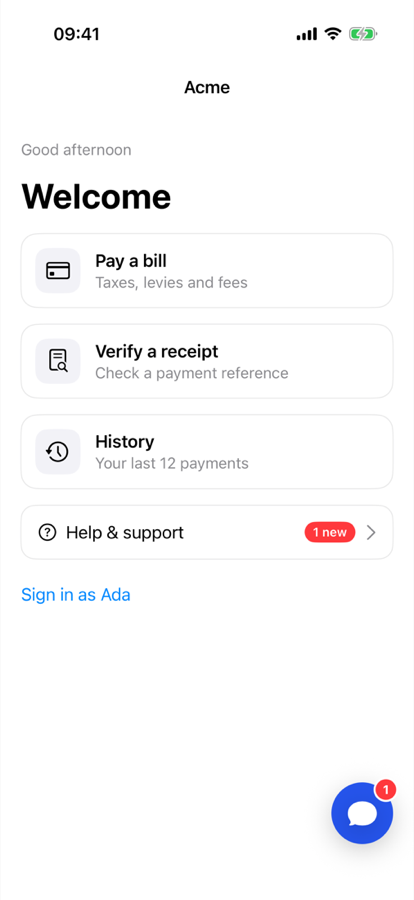
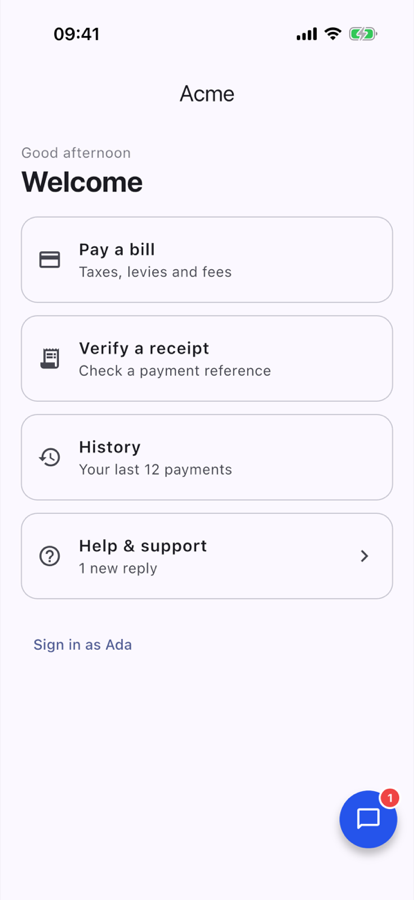
1. The launcher. Your app shows a round chat button with an unread badge. You can also show the unread count anywhere, for example a "1 new reply" line on your help screen. The workspace greeting counts as the first unread message.
iOS | Flutter |
|---|---|
|
|
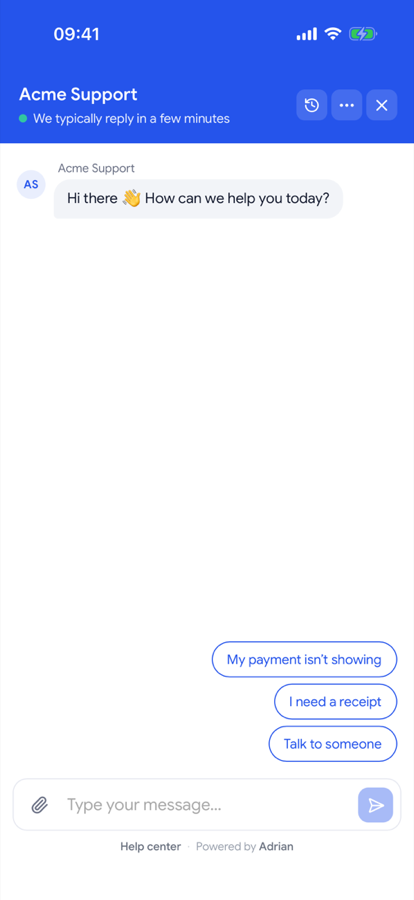
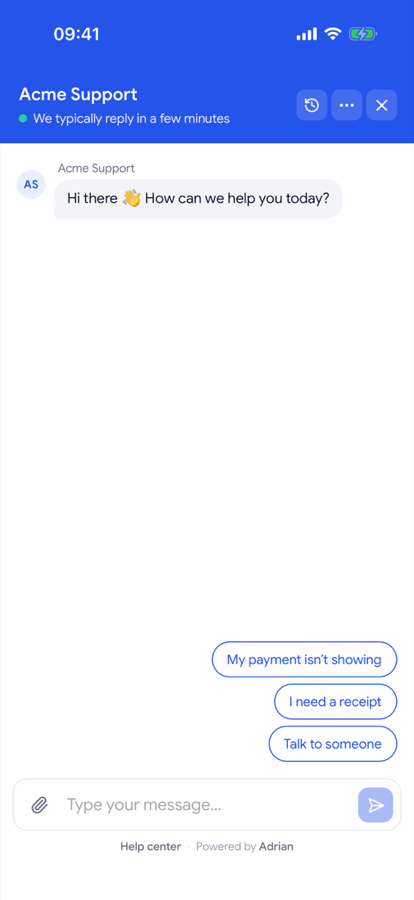
2. The messenger. Tapping the launcher opens the chat full screen. The status bar takes your brand colour, and the greeting and conversation starters come from Configure → Chat widget.
iOS | Flutter |
|---|---|
|
|
3. A live conversation. Your team replies from the Inbox, and the reply arrives in real time. If the app identified the customer, the conversation already shows their name and email. The visitor panel shows the screen they're on, for example app://com.acme.app/home.
iOS | Flutter |
|---|---|
|
|
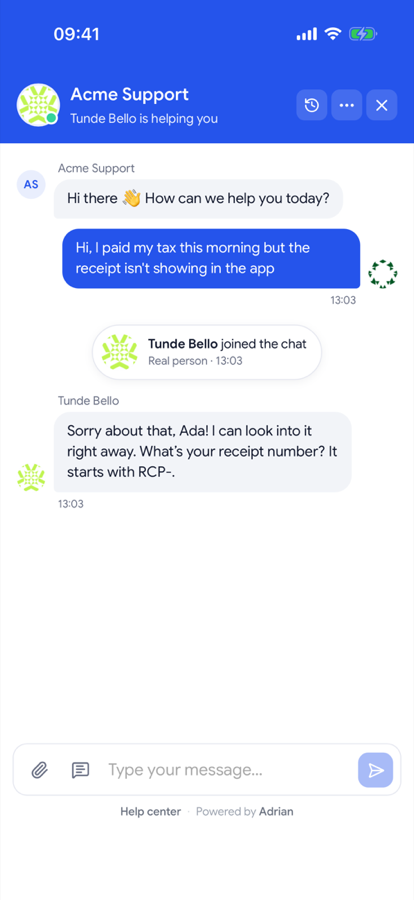
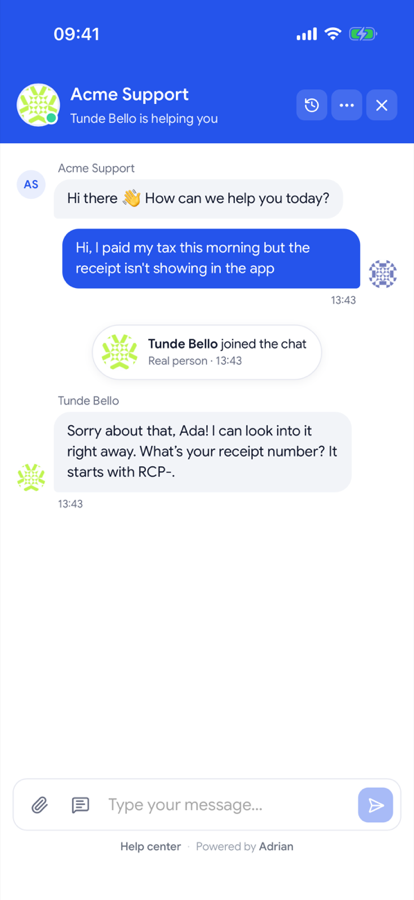
4. Replies while the chat is closed. The chat keeps running in the background, so new replies raise the badge even when the customer has closed it.
iOS | Flutter |
|---|---|
|
|
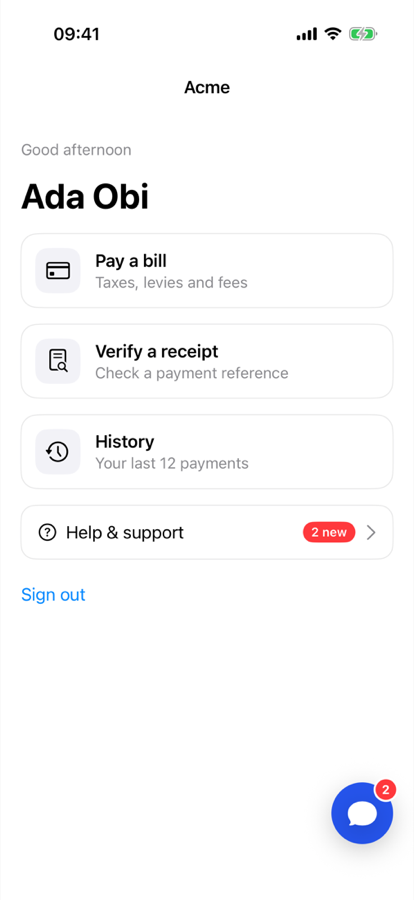
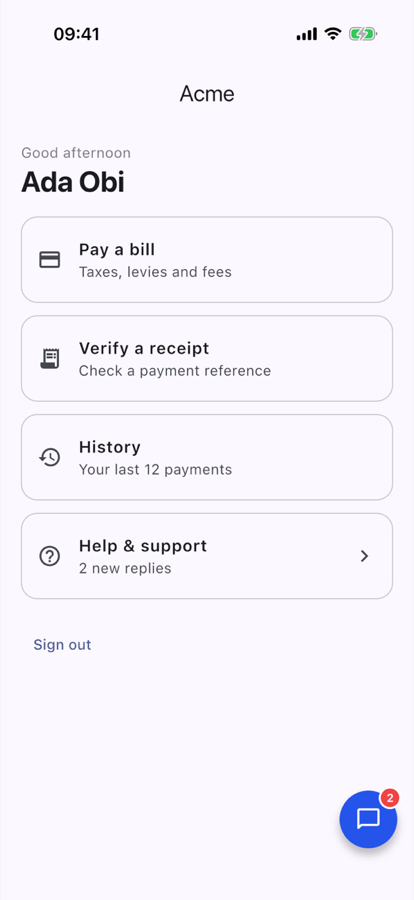
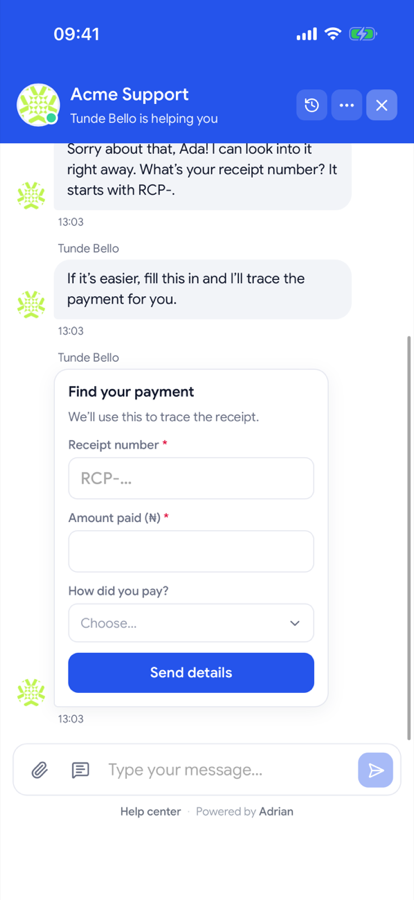
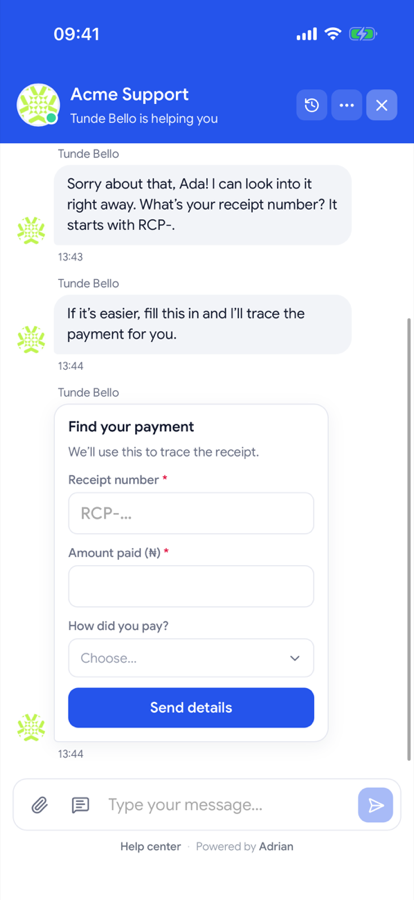
5. Forms and cards. Forms, buttons and chat flows look and behave exactly as on your website.
iOS | Flutter |
|---|---|
|
|
How it works
Each SDK runs your hosted chat widget inside the app, behind a small native layer. The native layer adds the launcher, the unread count, the customer's identity and the current screen. New chat features reach your app without an SDK update. Only your chat's own pages open inside the app; every other link opens in the browser.
Before you start
In Adrian, open Configure → Chat widget → Install and copy your workspace id (it starts with
ws_). It's the same public id your website snippet uses, so it's safe to ship in an app. The app needs no API keys.If you use Allowed domains on the Websites tab, apps still work. Apps load the chat from Adrian's own address, which is always allowed.
If chat is switched off for the workspace, the SDKs report it as unavailable and the launcher does nothing.
Production and local development
Production apps only need the workspace id. The SDKs connect to https://chat.adrianhq.co by default.
For local development, run the chat widget on your machine and point the SDK's widget URL at it, for example http://localhost:5181. Each guide shows the exact snippet, plus the platform setting that allows plain HTTP to localhost in debug builds. Never ship a build that points at localhost.
Was this article helpful?